
Implementing RBAC in Azure for Secure Resource Group Access

In modern cloud environments, not every team member should have full access to resources. Proper access control is important for security, accountability, and preventing accidental changes.
In this project, I implemented Role-Based Access Control (RBAC) in Microsoft Azure to manage access to a Resource Group. I created multiple users with different permission levels and ensured that only authorized users could create or modify resources, while others had view-only access.
This hands-on project helped me understand:
Azure IAM and RBAC
Role assignments
Least privilege principle
Resource Group level access control
Project Scenario A company project is hosted in Azure, and multiple team members require access to the environment. However, not everyone should have full control over the resources.
Objectives
Create a Resource Group
Create users
Assign RBAC roles
Implement least privilege access
Implementation Steps First create a resource group, this act as logical container for our resoucrces and help us manage our resources easily
To create a resource group click on the search bar in azure console and type resource groups
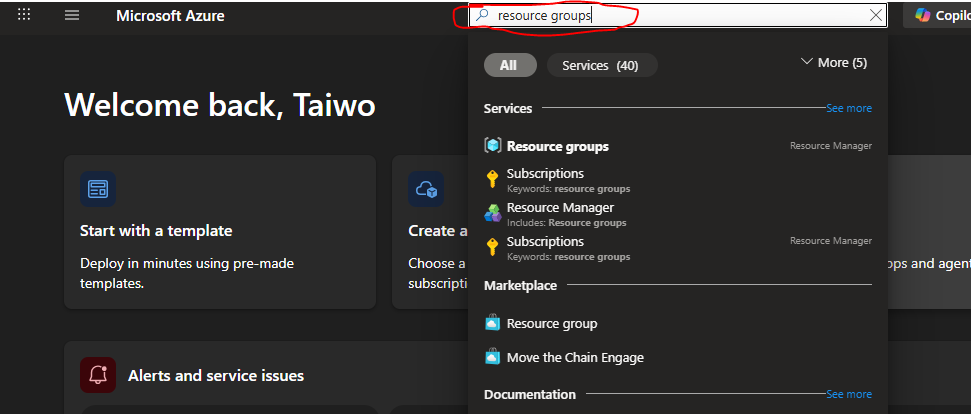
Click on the resource groups result shown
Nest step is to click on create as shown in the image below
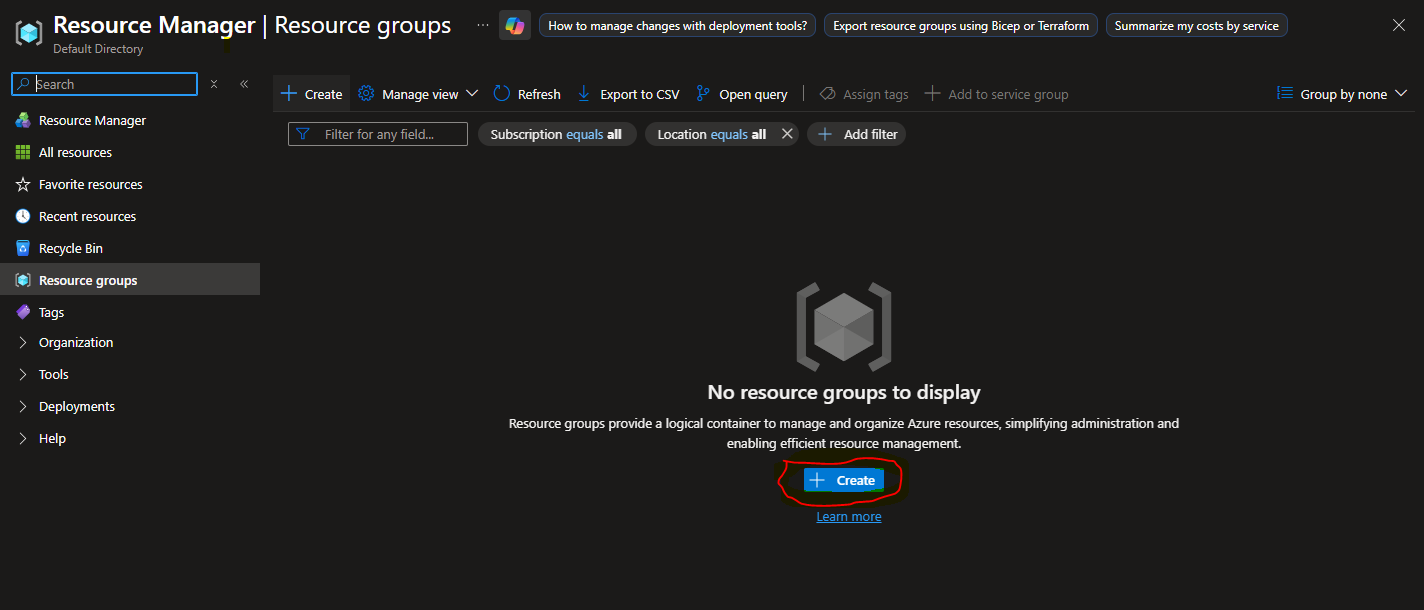
on clicking on the create button it will take you to the next page where you will fill in the following information, information such as selecting subscription, by default azure create subscription1 for us and that is what we would be using in this mini project next give it a resource group name and also select a region, for this project we would go with the South Africa North (as i am based in Nigeria and is the closed region to my company, choose a region closest to your company) then click on next
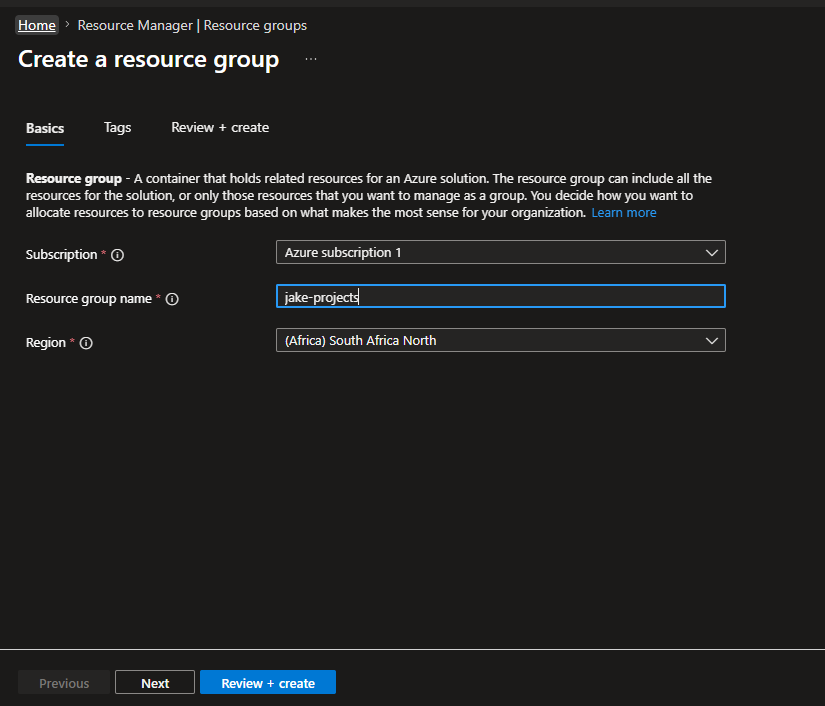
Next you are to select a tag name and value for the resource group to make it easier to search, but this is optional for this project we would leave it blank Next is to click on review and create after confirmation click on create
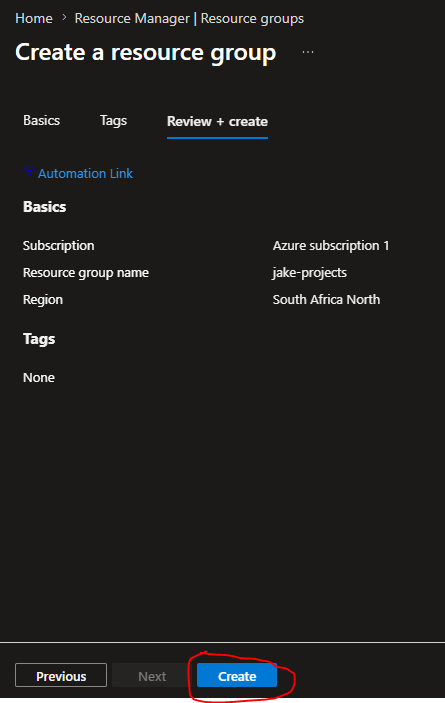
we have succesfully created our resource groups
next let us create a user for this project we would create 3 users
dev-user -> role: Contributor -> Access Level: Create/Edit Resources
tester-user -> role: Reader -> Access Level: View Only
auditor-user -> role: Reader -> Access Level: View Only
To create a user click on the search bar and type microsoft entra ID
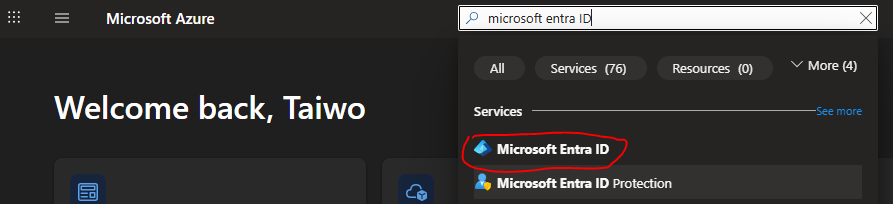
Click on microsoft entra ID from the results Go to manage and click on results
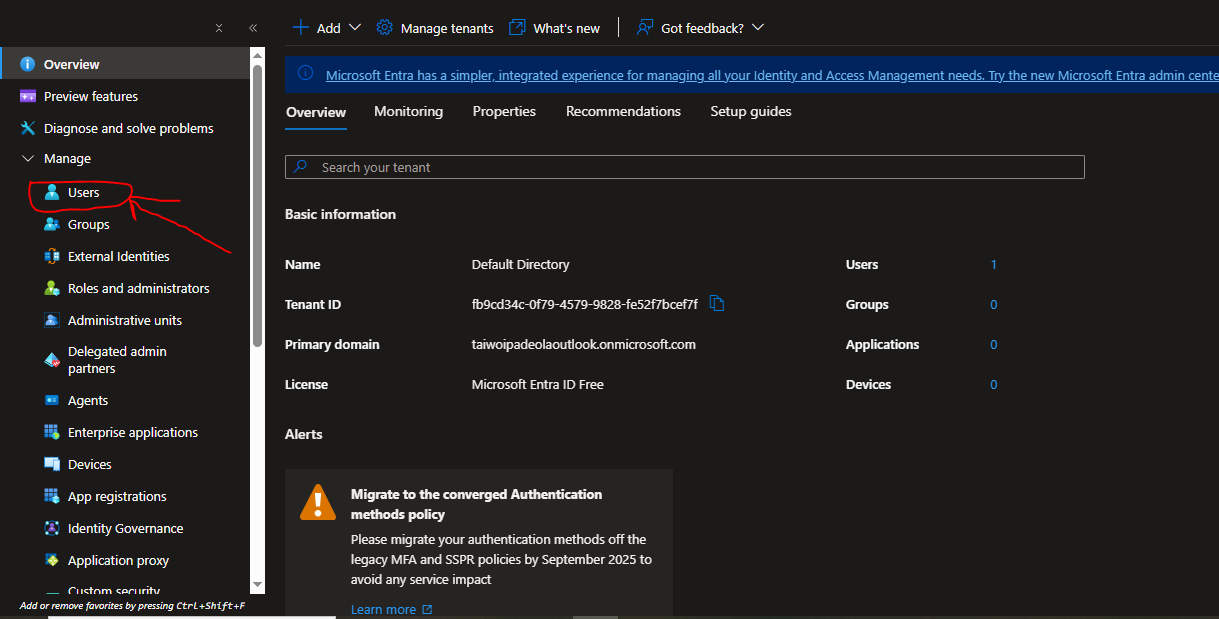
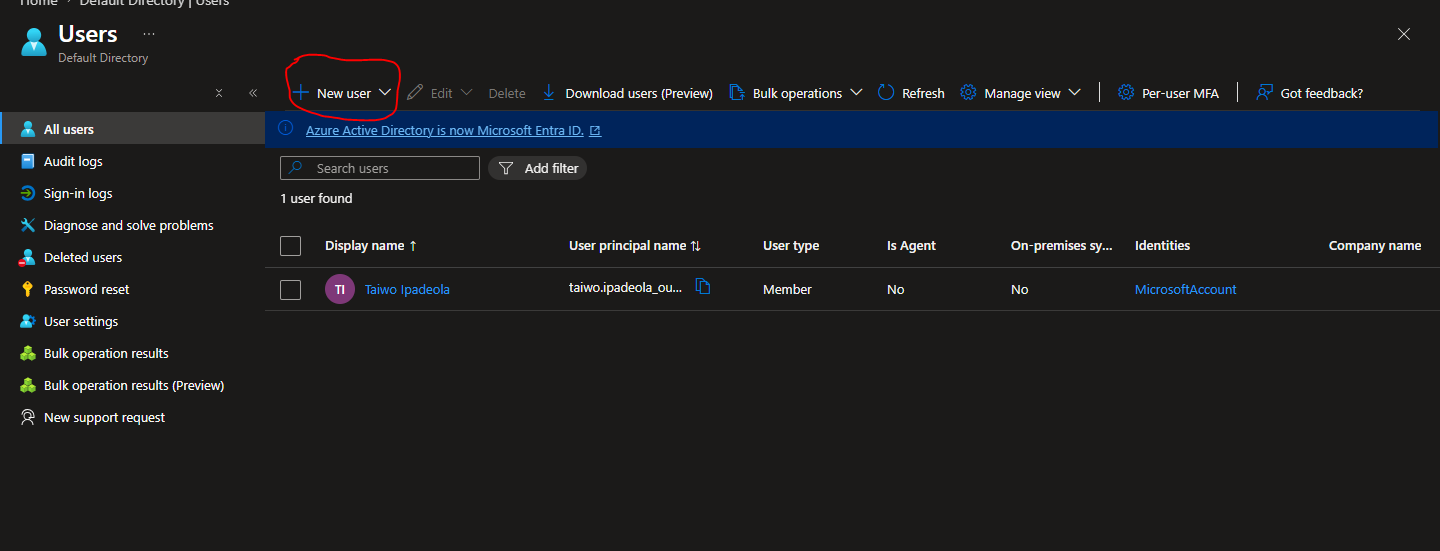
Click on new user, create new user
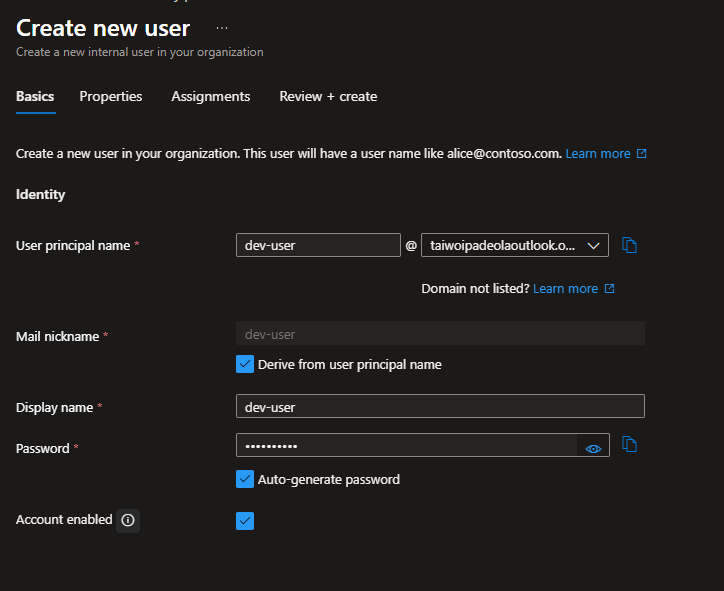
fill all the information and click on next
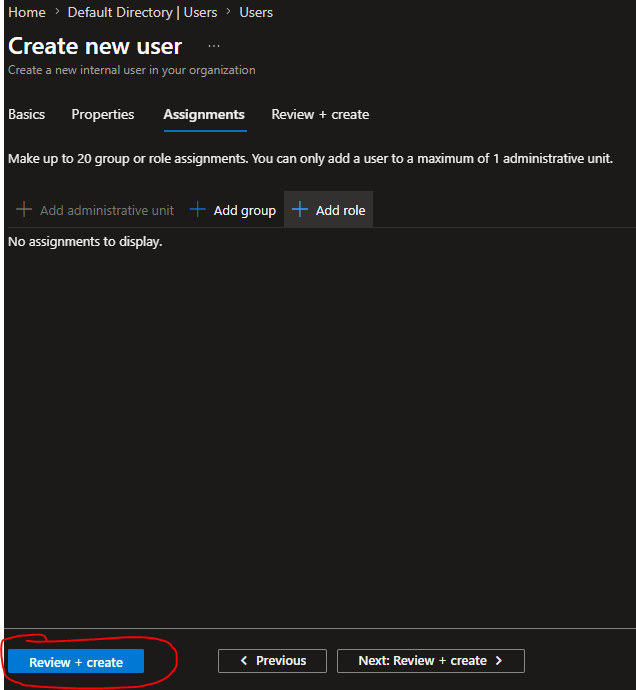
Since we want to gie it role from the resource group level we wonrt give it role at this point we would click on review and create and this would create our dev-user
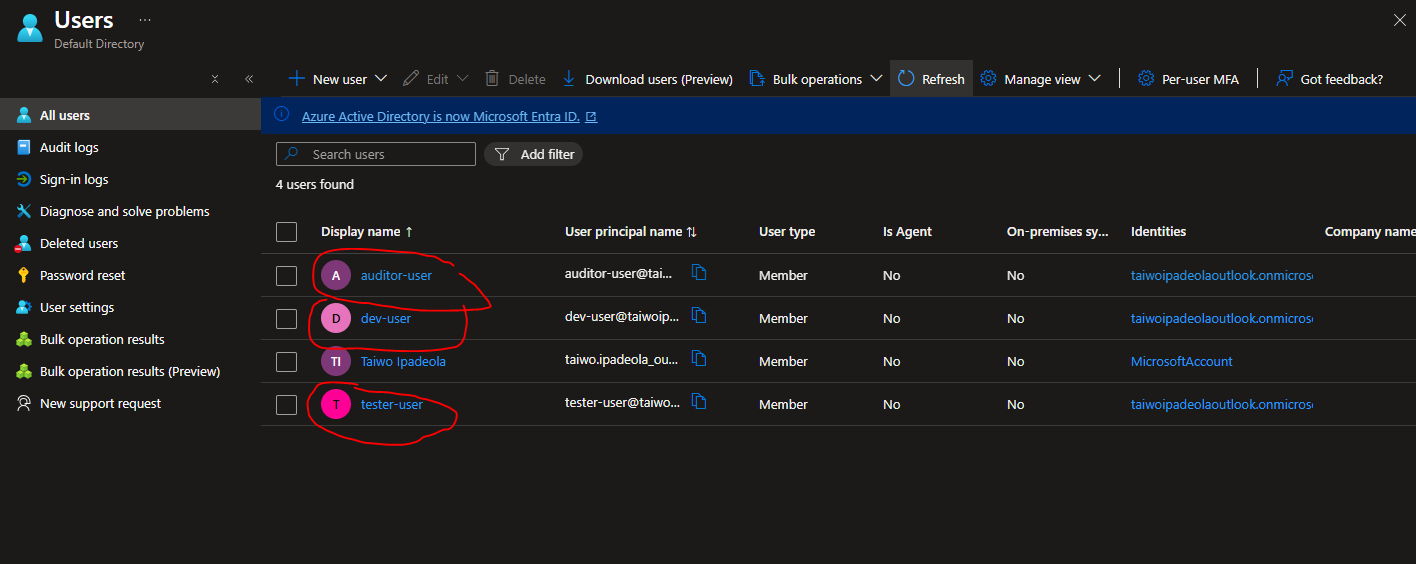
we would create a new user again to do the same thing we did ealier to create our tester-user and our auditor-user
at this state we have our three new users created
Now let us give each users role to what they can do so we dont just give them unnecessary power they do not need to have, for protections and securities reasons
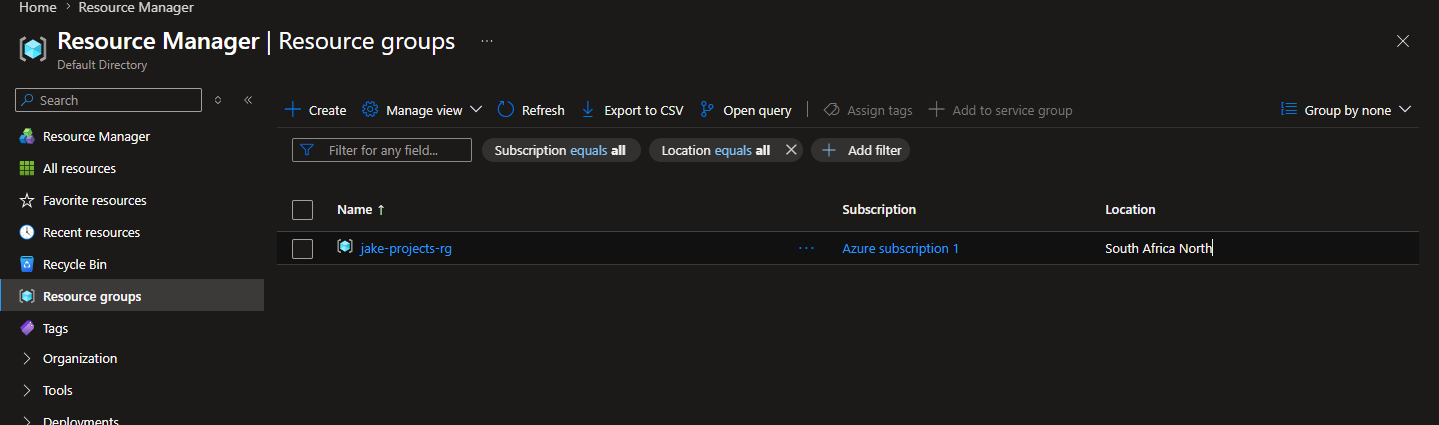
for us to give them role we would go our resource group we created ealier, by typing resource group in the search bar and click on jake-projects-rg we created ealier
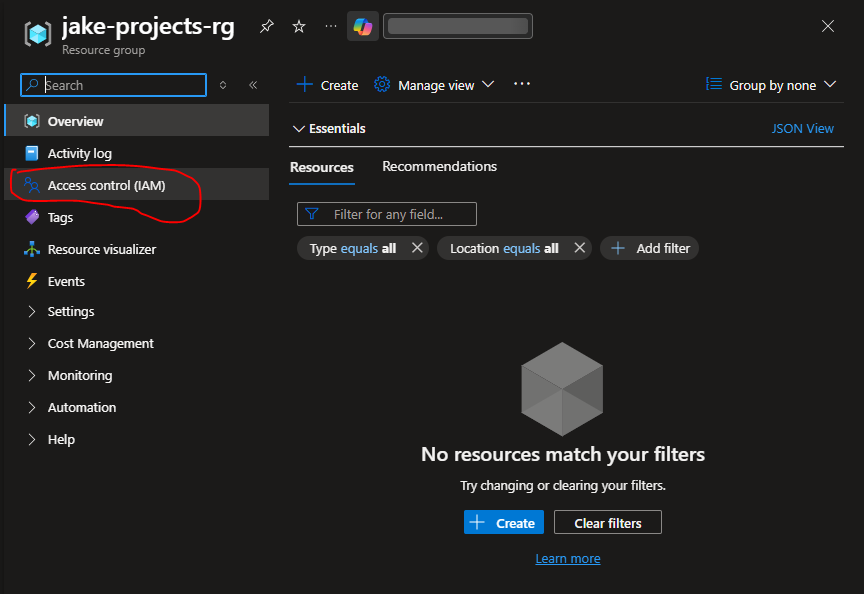
Thank click on access control (IAM)
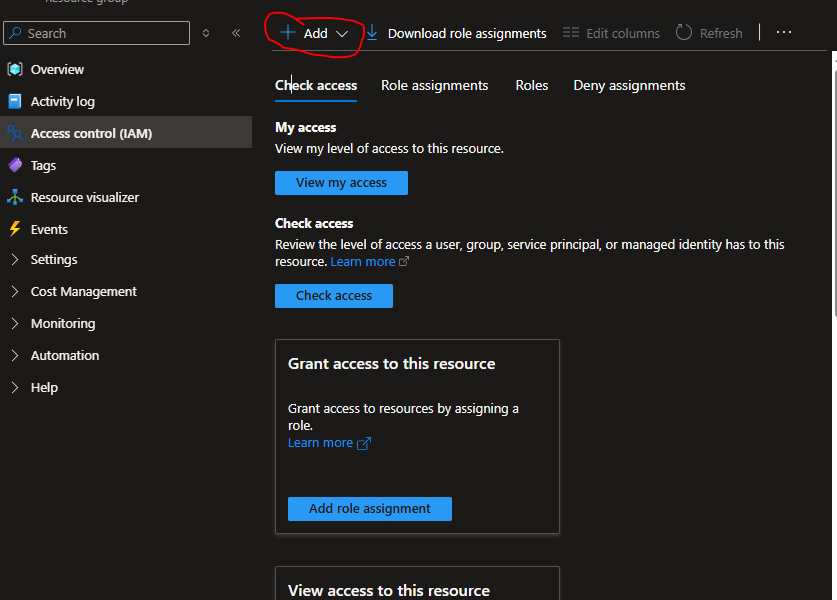
We would click on add -> assign role
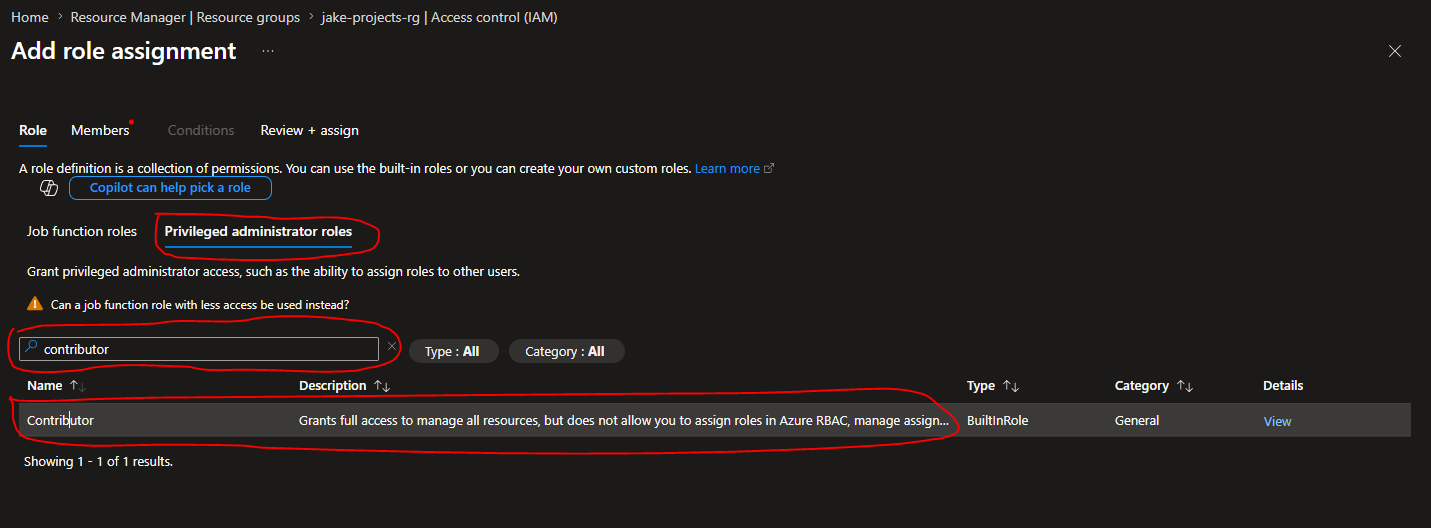
let us start assigning role to our dev-user first, since we want to give contributor access control to our dev-user we would role we wouls click on priviledge administrator and search for contributor
Click on the next button click on User, group, or service principal at the select access to on the members click on select member in order to add we we want to give this permision to which is our dev-user
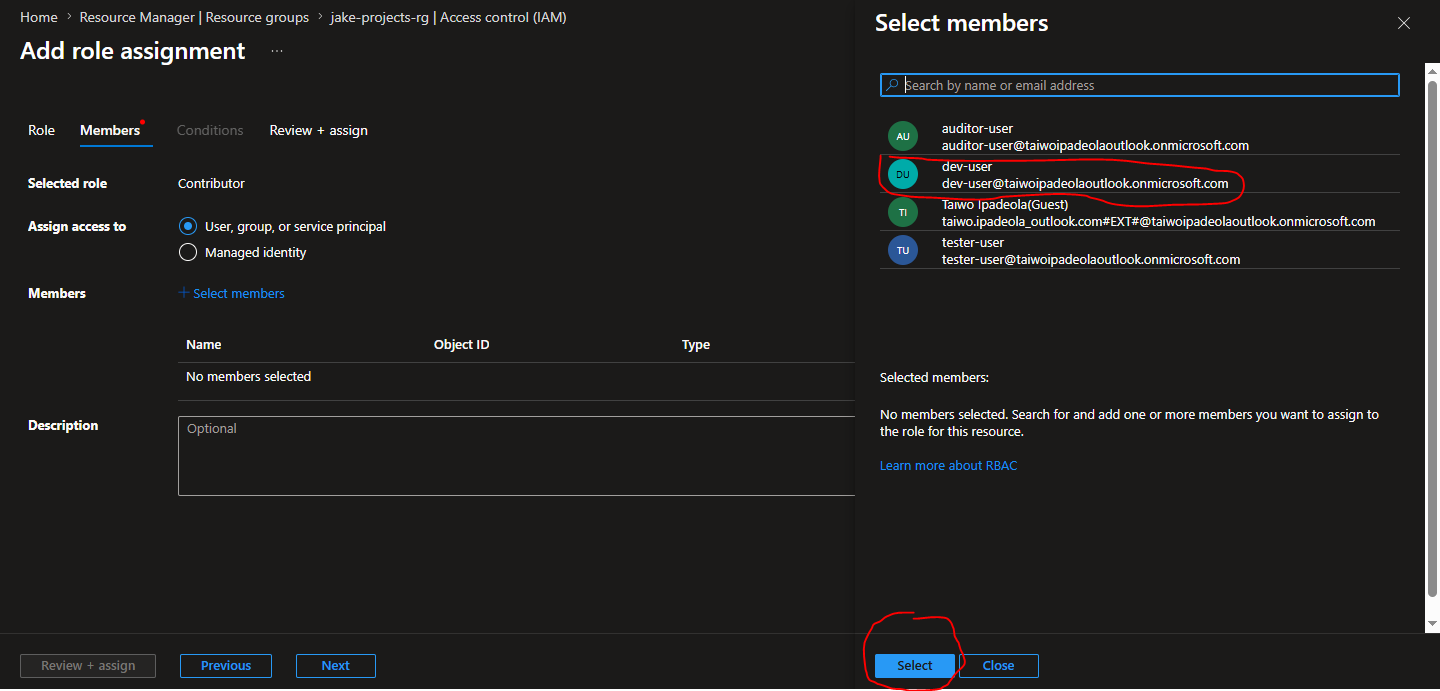
now our dev-user have been selected
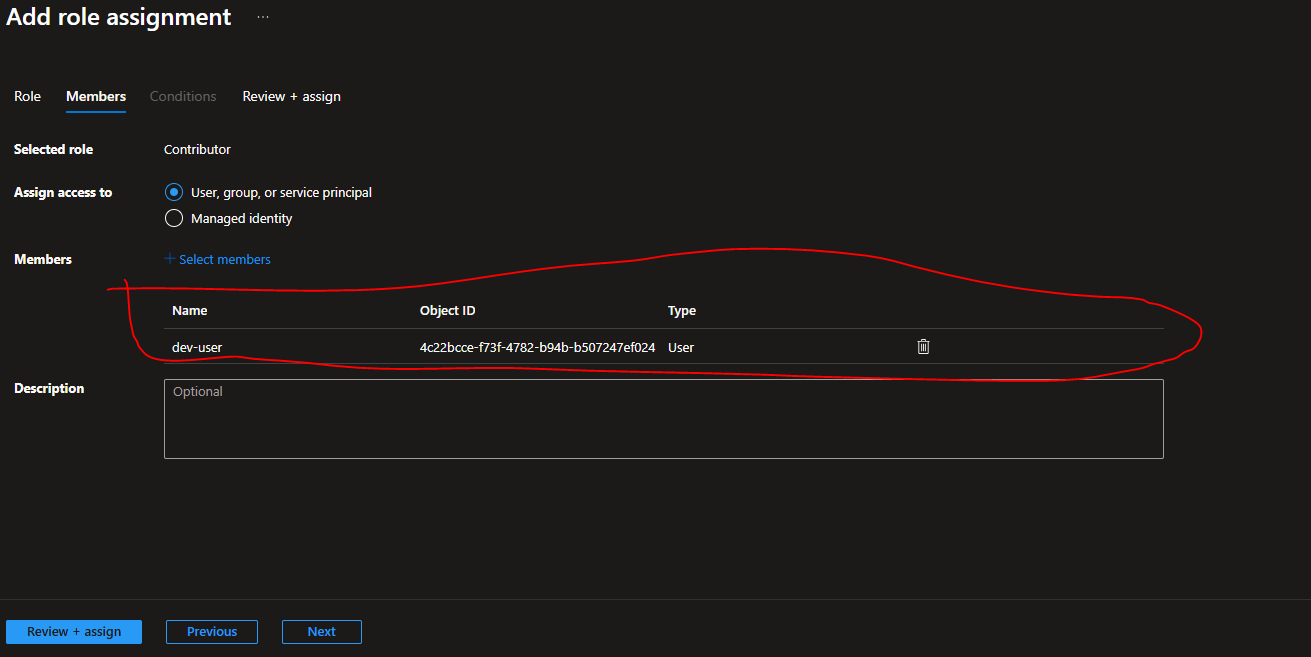
Next click on review and assign we have succesfully given role based accessed control to our dev-user
now let us do same thing to our remaining 2 users we want to give read access to
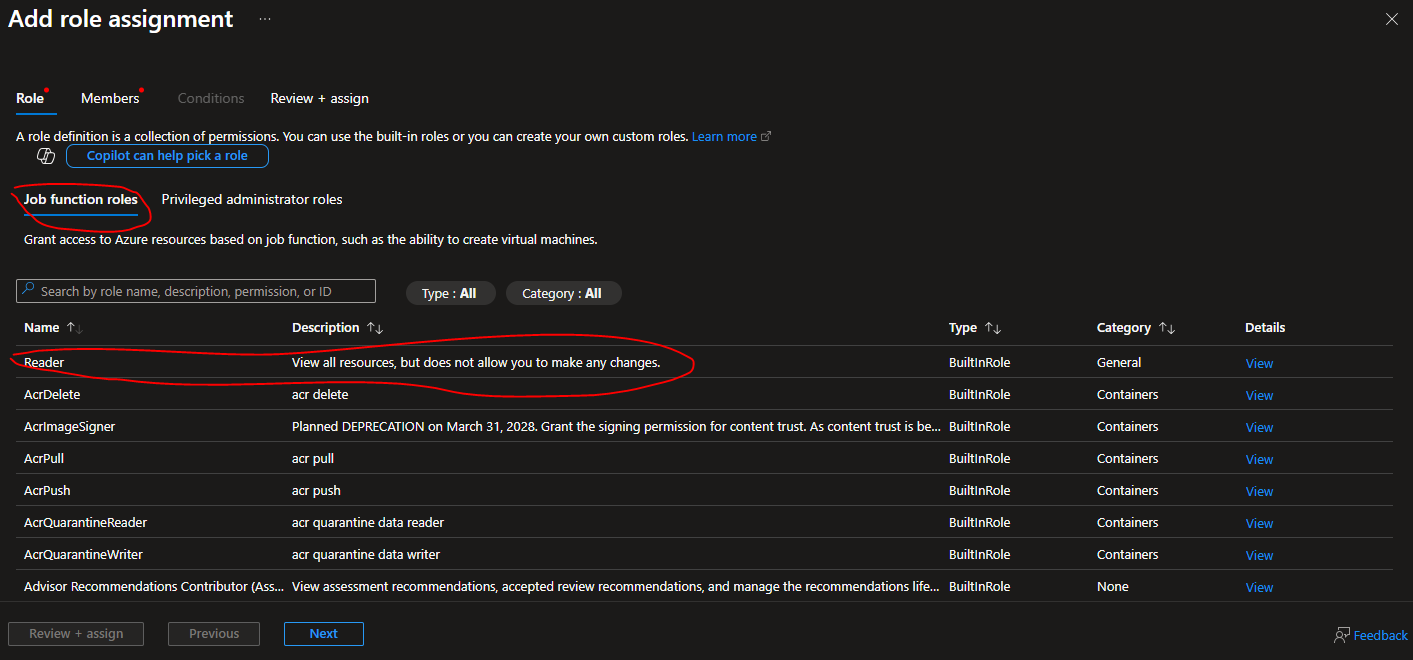
we would do the same thing as above we would click on add, add role assignment since the access we want to give to both users are read access only we would click on the job function and select the reader access this restrict the user from creating resources or accidentally deleting the resources but can only view
We would click on the add member and select the member we want to assign this role to in our case is the tester-user, and the auditor-user
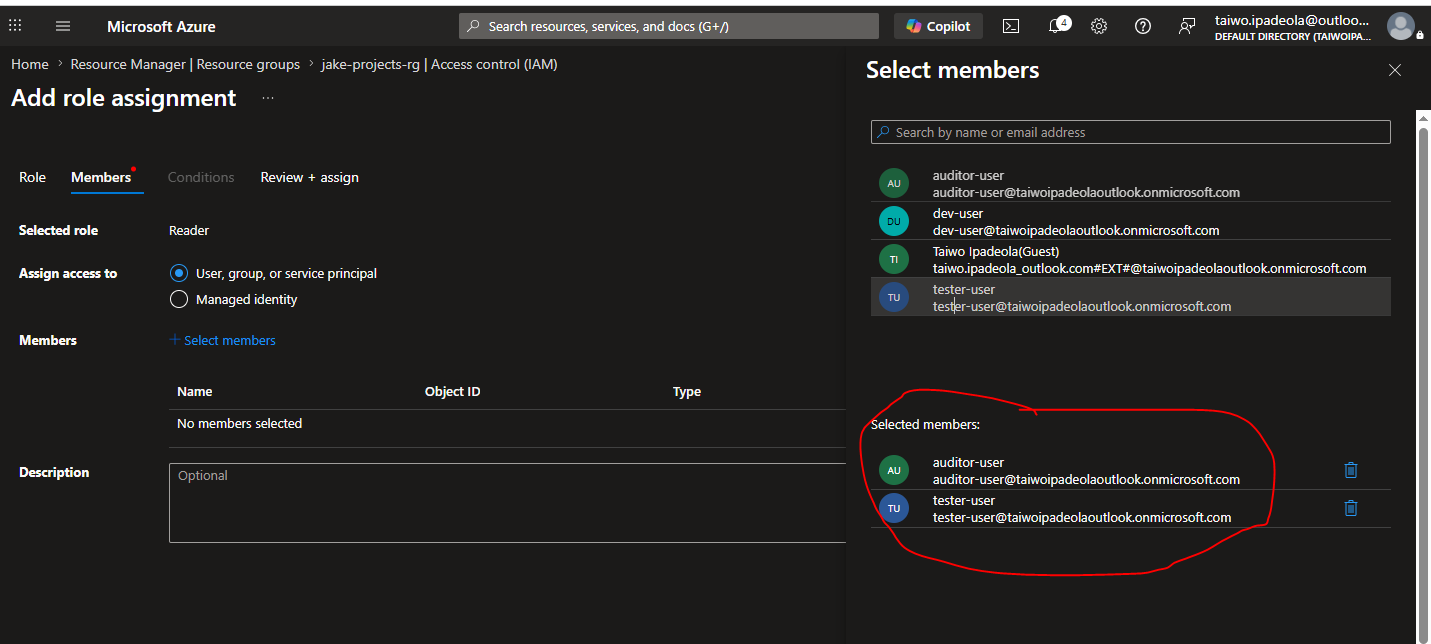
we would click on review and assign to complete this we have succesfully created and assign reader role to both users
When we click on role assigment inside the access control (IAM) in our resource group we can see we have succesfully
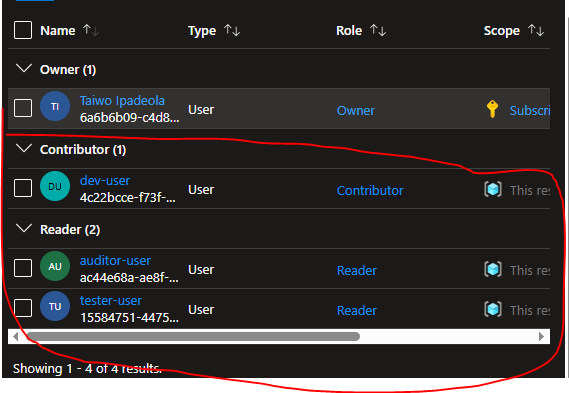
now this users can now sign in to their created accounts and do only what they are gicen power to do
The Dev-user can create resources, modify resources work on resources but delete resources and delete the resource group, mind you if the dev user mistakenly delete the resource group it can not be undone
auditor user and tester user can only read but can not create resources can not modify resources and can not delete resources
Security Improvement
During testing, I observed that a user with the Contributor role could delete the entire Resource Group. To improve protection against accidental or unauthorized deletion, Azure Resource Locks can be implemented to restrict deletion operations even for users with elevated resource permissions.